VPN and Remote Desktop Gateway still sign users in with RADIUS, and RADIUS knows nothing about modern multifactor authentication. The NPS extension for Microsoft Entra MFA closes that gap: it adds an MFA step to Network Policy Server (NPS), so remote access gets the same second factor as Microsoft 365, without replacing the VPN or the gateway. This is the architecture I use, the decisions behind it, and the settings that catch people out.
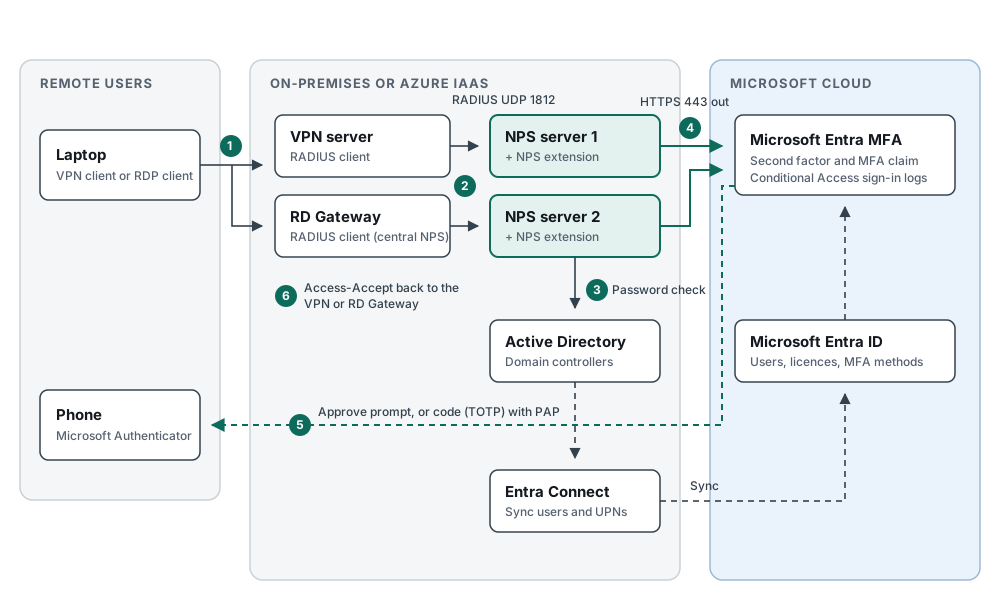
How a sign-in flows
The numbers match the diagram.
- The user starts a VPN or Remote Desktop connection with their domain user name and password.
- The VPN server or RD Gateway acts as a RADIUS client and sends an Access-Request to an NPS server.
- NPS checks the password against Active Directory and applies its network policies, as it always has.
- If that succeeds, the NPS extension asks Microsoft Entra MFA for a second factor over outbound HTTPS.
- Entra MFA prompts the user: an approval in Microsoft Authenticator, or a one-time code, depending on the protocol and settings below.
- When the user responds, the extension receives a token with an MFA claim, NPS returns Access-Accept, and the session starts.
Entra Connect keeps the users in Active Directory and Entra ID matched, which is what lets the extension find the right person in the cloud.
Components
- NPS servers with the extension. At least two, on supported Windows Server, kept separate from the VPN server. Each runs the extension with its own certificate.
- RADIUS clients. The VPN server or firewall, and the RD Gateway. For RD Gateway, the gateway uses a central NPS server as its connection authorisation policy store, and the extension goes on that NPS server, not on the gateway.
- Active Directory. The first factor: user name and password.
- Microsoft Entra ID and Entra MFA. The second factor, sign-in logs and the user's registered methods.
- Entra Connect. Synchronises users so the same identity exists on both sides.
Design decisions
- Two NPS servers, not one. Add both to every RADIUS client. Each NPS server has its own certificate, so you can renew or rebuild one without touching the other.
- A dedicated NPS role. The extension expects the NPS server to do both the password check and MFA. It cannot proxy RADIUS to another server, and once a RADIUS client points at an extension-enabled server, every sign-in from that client needs MFA.
- Longer RADIUS timeouts. The user needs time to pick up their phone. Set the VPN's RADIUS timeout to at least 60 seconds, and 90 to 120 seconds reduces discarded duplicate requests. On RD Gateway, raise the dropped-request timeout from the default 3 seconds to between 30 and 60 seconds.
- PAP or MS-CHAPv2. This choice decides which second factors work. With PAP, users can approve a push or enter a one-time code. With MS-CHAPv2 or EAP, only phone call and push approval work. Recent versions of the extension prompt for a one-time code instead of a simple approval when the user has one registered, because NPS does not support number matching. That needs PAP. If your RADIUS client cannot use PAP, set the extension to fall back to approve and deny.
- RD Gateway users and one-time codes. RD Gateway supports phone call and push approval only. If users have a one-time code method registered, set the registry value
OVERRIDE_NUMBER_MATCHING_WITH_OTPtoFALSEon the NPS servers that serve RD Gateway, or sign-ins fail. - Outbound HTTPS only. The NPS servers need outbound TCP 443 to the Microsoft sign-in and MFA endpoints listed in the Microsoft documentation. Nothing comes inbound from the internet.
Prerequisites
- Microsoft Entra ID P1 or P2 licences (or a suite that includes them) for the users. Per-authentication MFA licences are not supported.
- Users synchronised with Entra Connect and registered for MFA before the switch.
- A Global Administrator to run the setup script,
AzureMfaNpsExtnConfigSetup.ps1, once per NPS server. It creates the certificate and links it to your tenant.
Rolling it out safely
- Build the NPS servers and install the extension, then test with a small pilot group on a separate RADIUS client or a test VPN profile.
- Make sure every pilot user has registered Authenticator, and ideally a one-time code as well.
- During onboarding only,
REQUIRE_USER_MATCHset toFALSElets users who have not registered sign in without MFA. Remove it before production, or it becomes a quiet bypass. - Move the production RADIUS clients to the extension-enabled servers in a change window, with the old NPS policy ready as rollback.
Running it
- Certificate renewal. The certificate lasts two years. Rerun the setup script before it expires, and remove expired certificates, which can stop the extension from starting.
- Logs. Check the NPS event logs and the extension logs on the server, and the Entra sign-in logs for the MFA side. Microsoft provides a health check script for the extension.
- Patching. Upgrade one NPS server at a time. Uninstalling the old version, installing the new one and restarting the NPS service avoids a reboot.
When to choose something else
The NPS extension is the right tool when you need to keep an existing RADIUS VPN or RD Gateway. For new remote access, look first at options that sign in with Entra ID directly, such as Azure VPN Gateway point-to-site with Entra ID authentication, or Microsoft Entra Private Access, where Conditional Access can see the device and the risk as well as the user.